 Zawanah
 I have 4 NanoClaw agents running, but I want to explore having an all-in-one personal assistant. So I did my research to decide between Hermes and OpenClaw, and ultimately chose Hermes.
With that decision made, I installed Hermes on my Intel NUC and configured it as an always-on assistant, accessible through Telegram. Here’s how I set it up.
Step-by-Step Setup
1. Run the installer curl -fsSL https://hermes-agent.nousresearch.com/install.sh | bash
For details of installation, refer to the Installation Docs
2. Select setup type
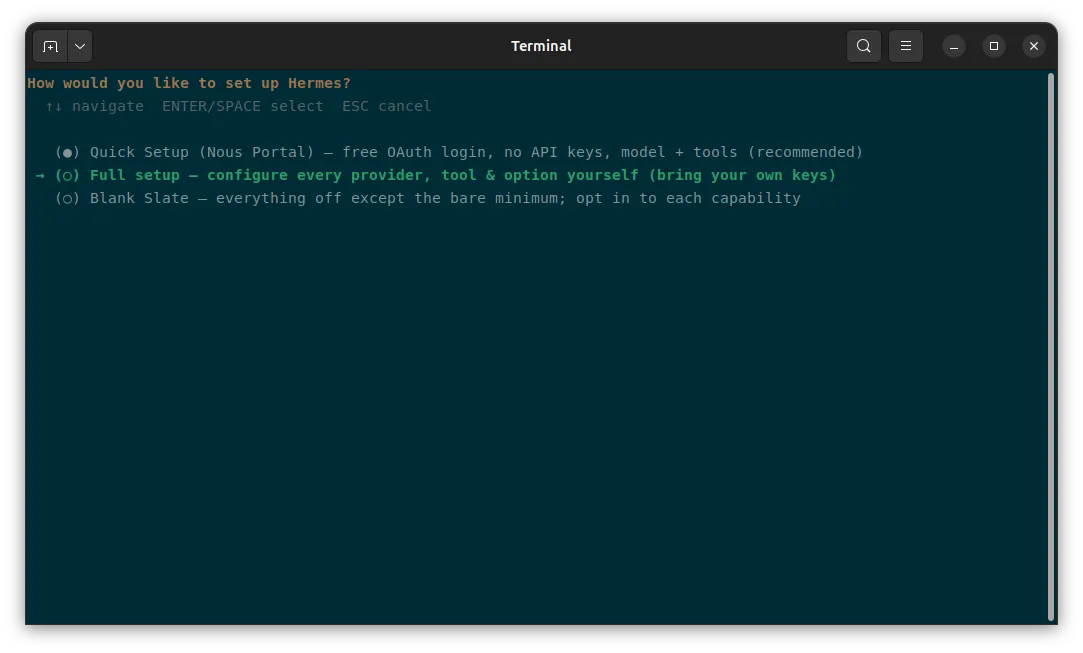
There are 3 setup modes :
- Quick Setup signs you into Nous Portal through OAuth (you will need a Nous Portal subscription), selects a model (Nous Portal has a catalogue of 300+ models), and enables Nous-managed tool gateway features.
- Full Setup walks through every provider, tool, and option during the setup.
- Blank Slate gives you the bare minimum needed to run an agent - provider & model, the file operations toolset, and the terminal toolset. There’ll be no web, browser, code execution, vision, memory, delegation, cron, skills, plugins, or MCP servers. Additionally, compression, checkpoints, smart routing, and memory capture are disabled.
I chose
Full Setupbecause I don’t have a Nous subscription, I don’t want the bare minimum, and prefer having the preset tools configured
3. Select the model provider
Choose the provider that will supply Hermes with its main language model.
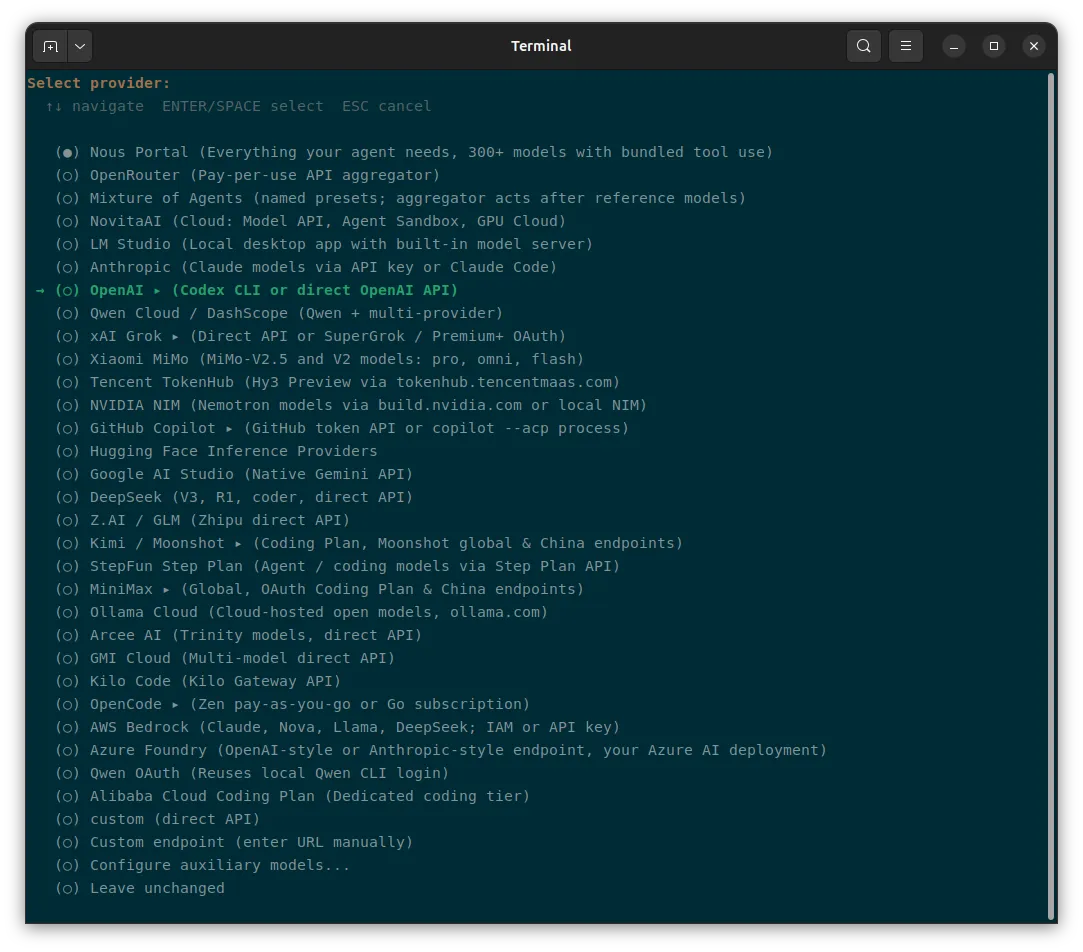
I intended to use Claude models since I already have a Claude Pro subscription. However, while it says “Claude models via API key or Claude Code”, it actually automatically routes to API billing.
Instead, I selected Open AI Codex, authenticated through my ChatGPT Plus subscription.
I did not mind since model capabilities continue to evolve so I prefer being model-provider-agnostic.
4. Connect Model Provider’s Account
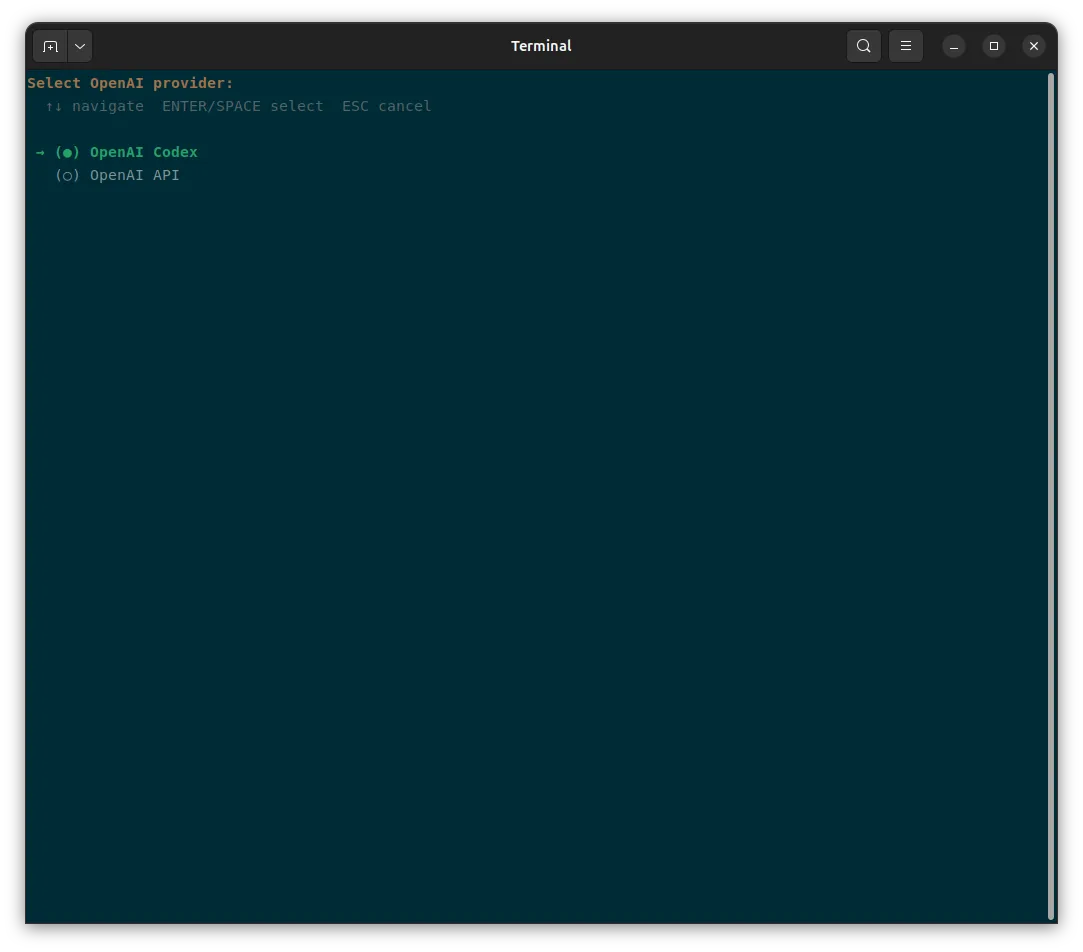
You’ll be prompted to authorise with a device code next.
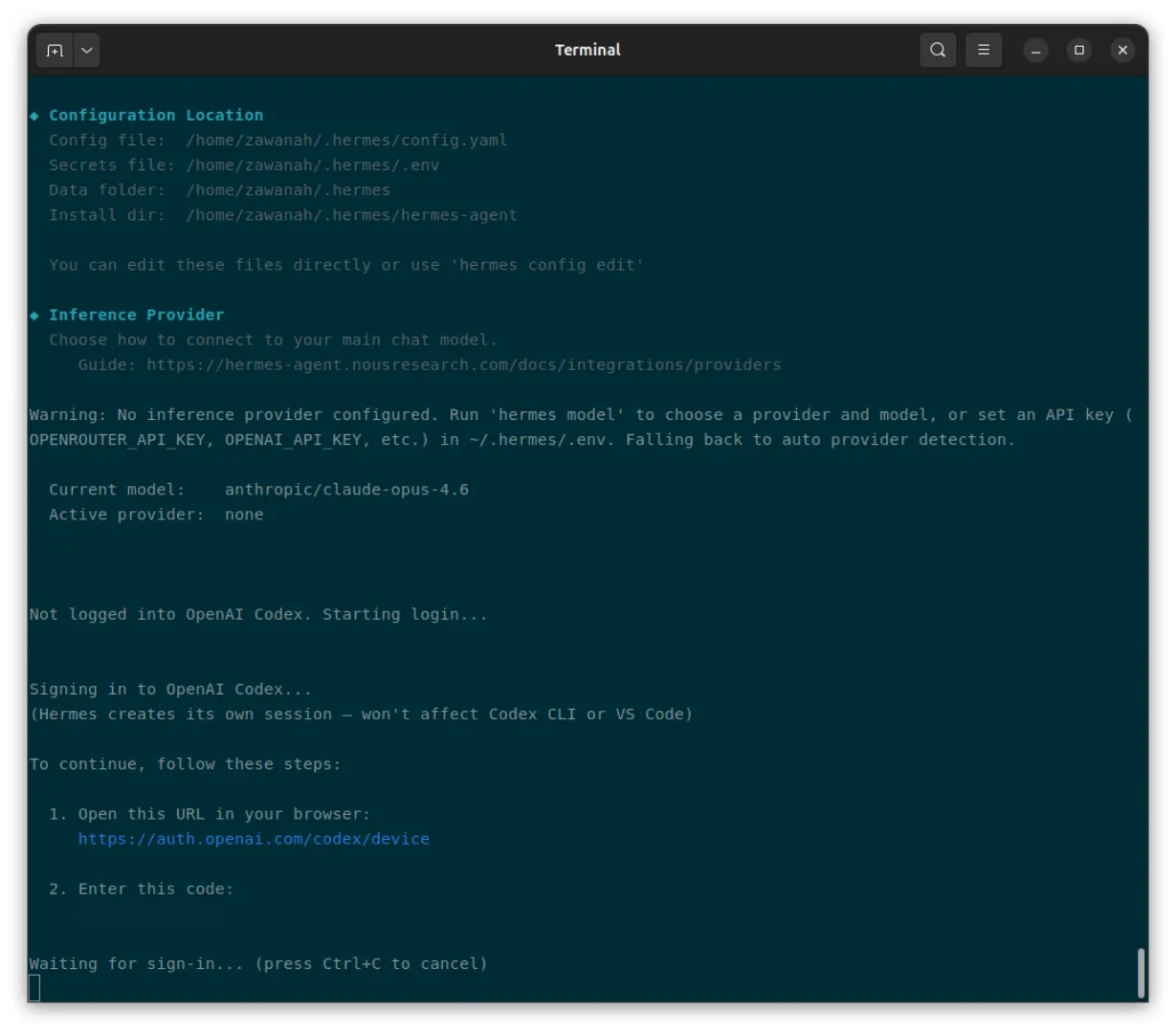
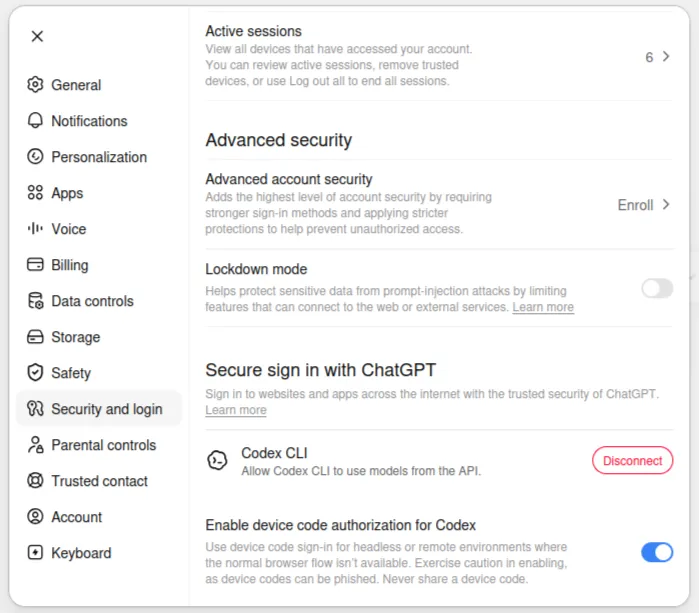
If not yet enabled, head to ChatGPT settings to enable device code authorization for Codex.
5. Set the default model
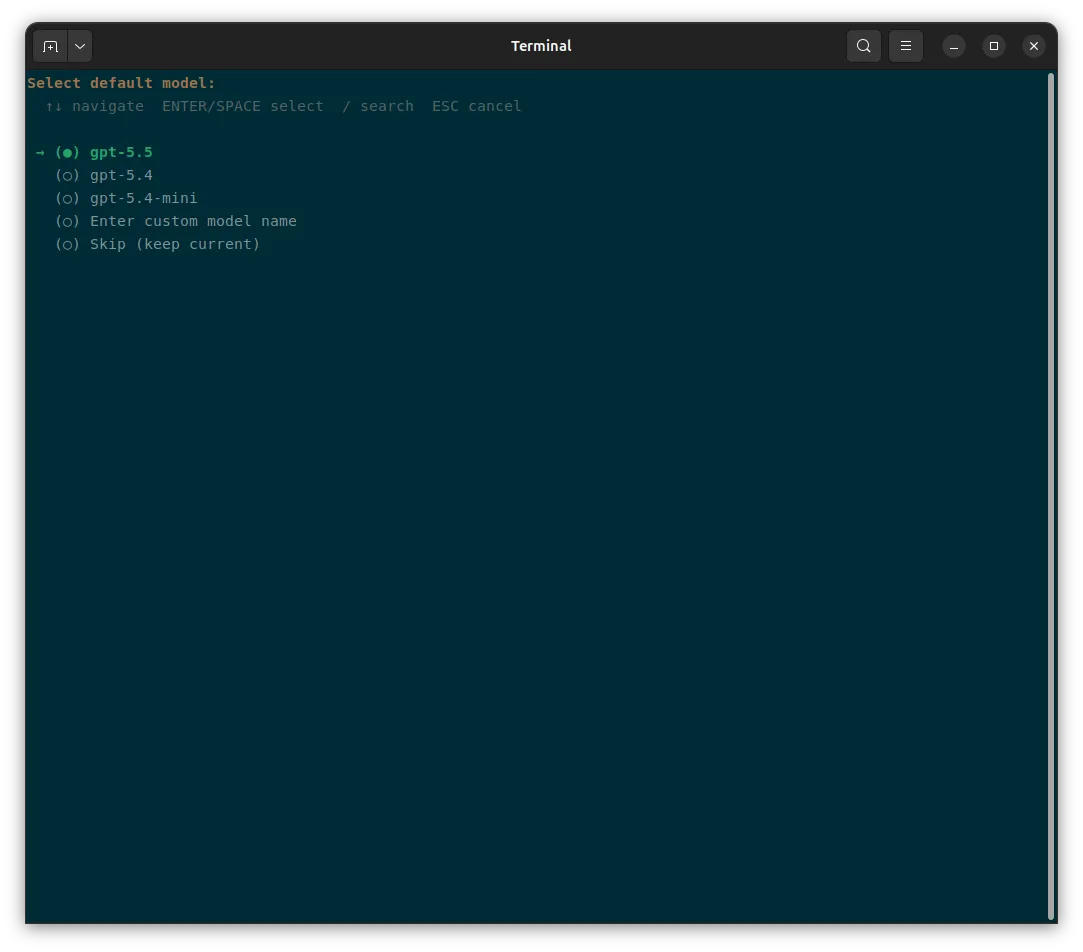
I selected the latest model available, gpt-5.5. You can change the model anytime later using the /model command.
6. Select the Terminal Backend
This setting determines where commands initiated by Hermes will execute.
Note: It doesn’t determine where model inference happens. My requests are still sent to the Codex model selected earlier
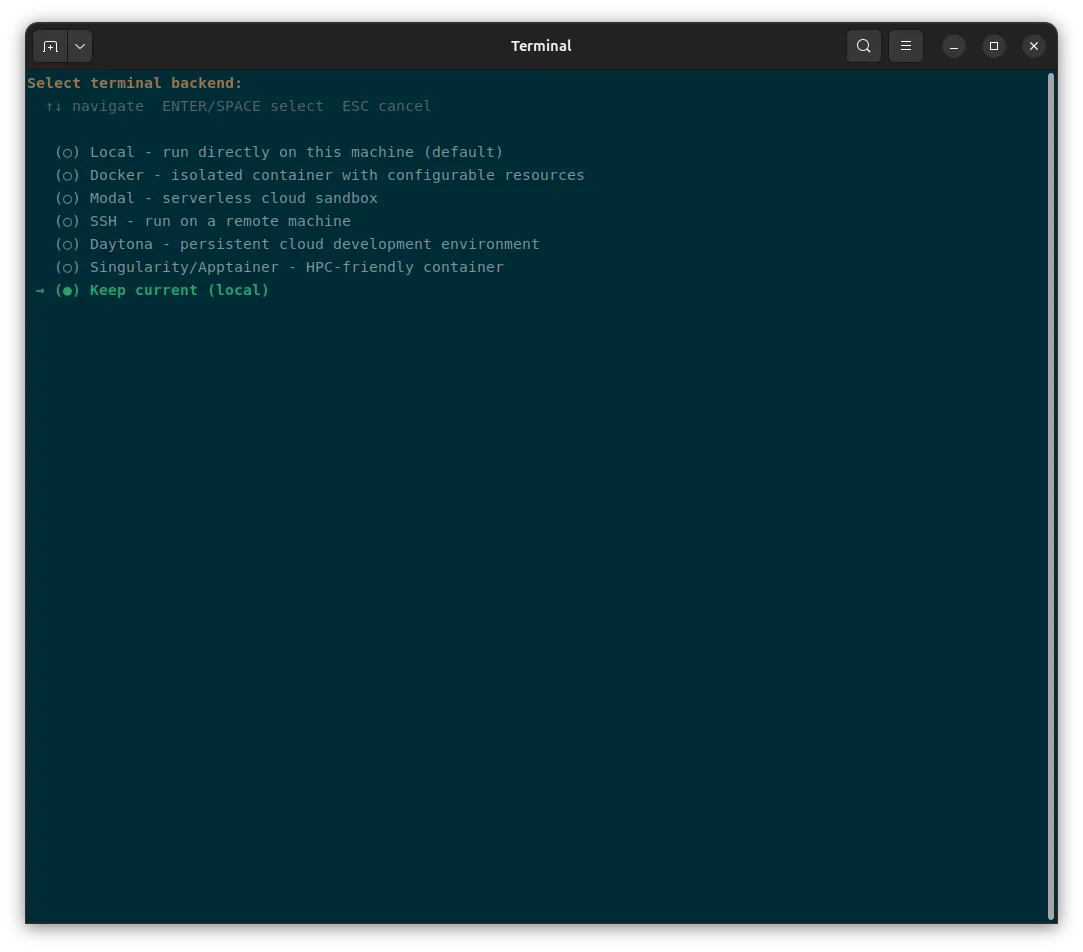
I decided on the default Local backend, which means that Hermes will execute terminal commands and work with files directly on my Intel NUC (rather than inside an isolated environment). This allows it to use programs and credentials already configured on the machine.
I am fine with this because :
- my Intel NUC is a dedicated machine for running Hermes (I have nothing personal on it)
- Hermes does not have passwordless sudo access
- Hermes can access the operating system directly without Docker-related friction so installing packages, managing files and running background processes is simpler
- Any files built with Hermes are backed-up daily minimally so it’s easy to rebuild if something goes wrong
The trade-off is no execution isolation in the system, which means there is no container boundary, and so, commands can directly affect the host. A mistaken or unsafe command could modify files or affect the NUC.
Other Backends
-
Docker provides a stronger security boundary. Hermes remains on the NUC, but its commands execute inside an isolated, persistent container. This reduces the impact that commands can have on the host. The main limitation is integration friction. Commands inside the container cannot automatically see every host file, application or credential. This is best when isolation matters more than seamless host access.
-
Modal is where commands execute in a serverless cloud sandbox. Compute can be created when needed rather than running continuously on the NUC. This is best when Hermes occasionally needs isolated cloud computing that can be created on demand. However, it requires a Model account and credentials, and usage may incur cloud costs.
-
SSH is best for when you already control another machine that should perform the work. eg. VPS as execution environment. Hermes connects to the remote machine using SSH and executes commands there. Unlike Modal or Daytona, Hermes does not create or manage that server for you. You are responsible for its operating system, security, uptime and backups. The security boundary is the remote machine itself. If Hermes runs a destructive command, it affects that server rather than the NUC
-
Daytona is best for managed, persistent cloud development environments without maintaining a server yourself. It requires a Daytona account and API key. Compared with SSH, Daytona manages more of the workspace lifecycle; compared with Modal, it is oriented more toward persistent development than short-lived compute jobs.
-
Singularity/Apptainer is best for when Hermes operates in a high-performance computing or institutional research environment.
7. Choose how you wish to communicate with Hermes
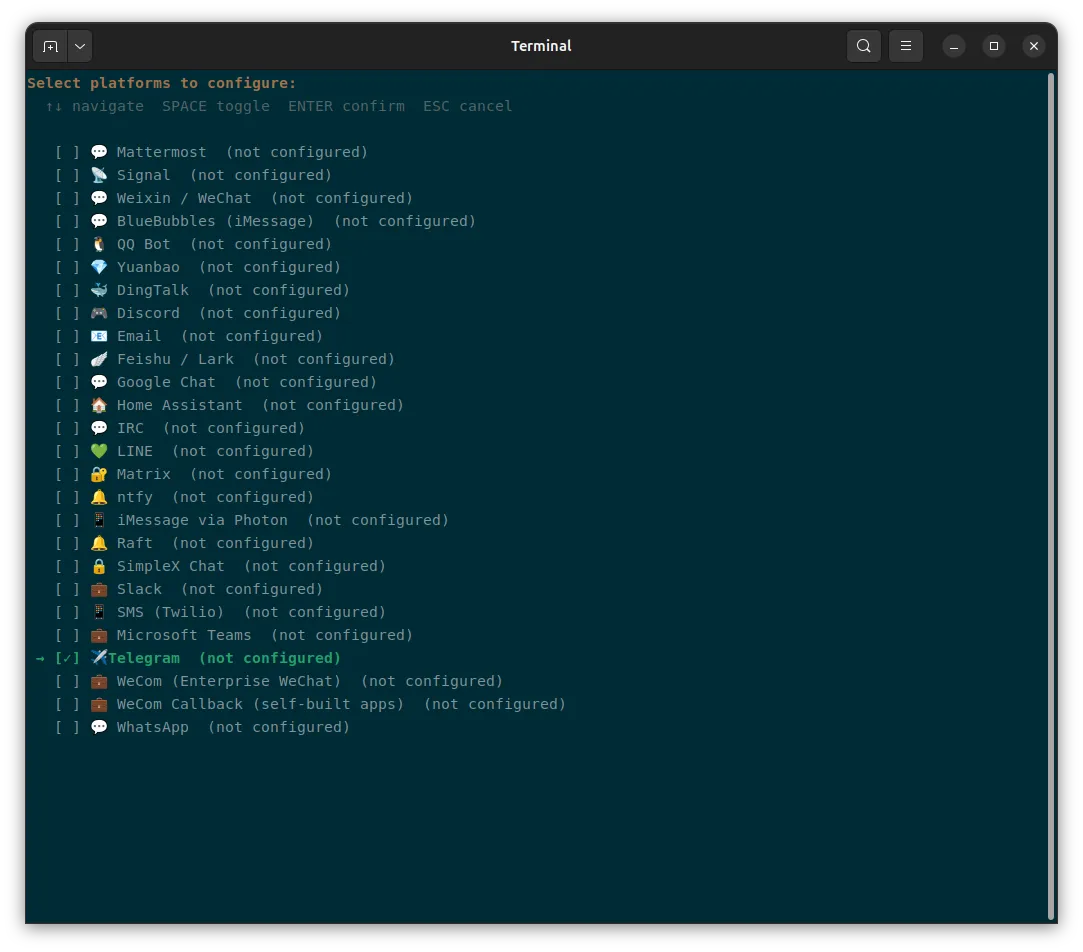
I selected Telegram as I am mostly on it and wish to have my main Personal Assistant there.
8. Create Telegram bot with BotFather
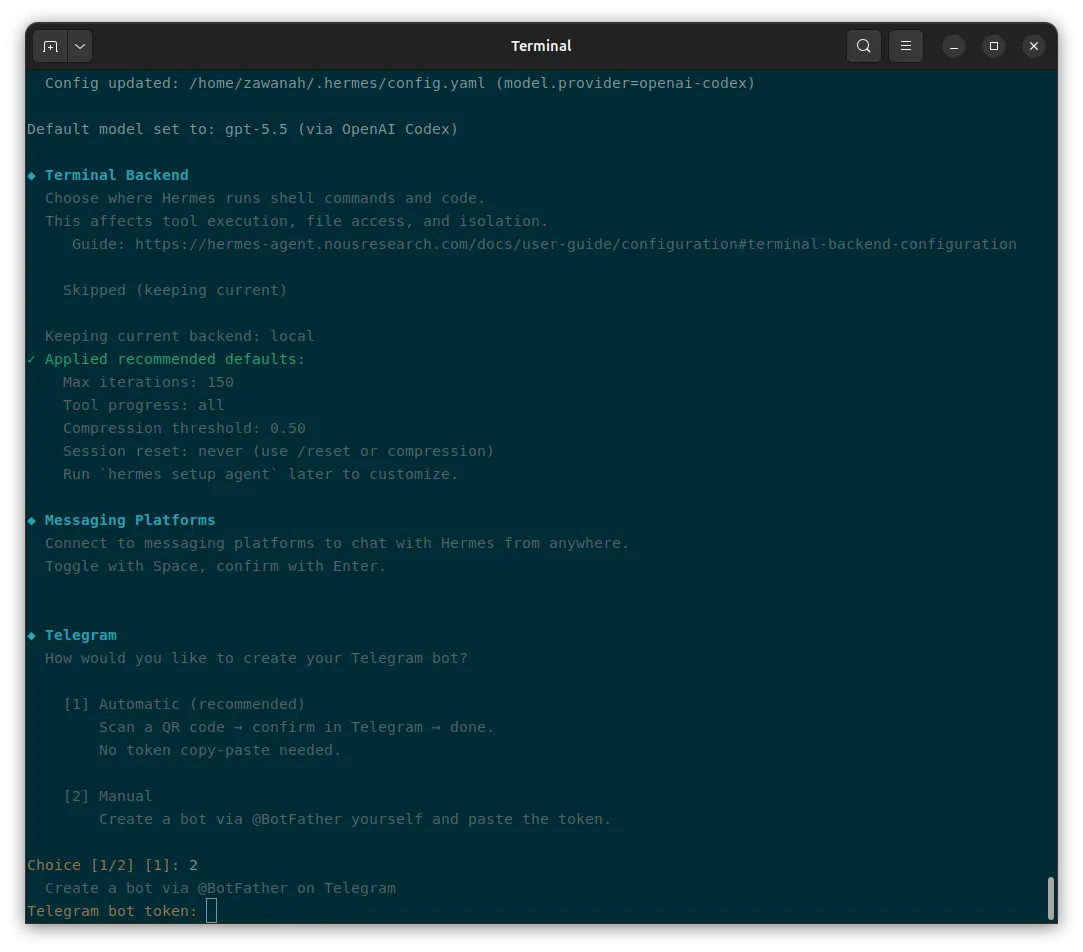
Paste the token in the terminal once created.
9. Connect and authorise Telegram account(s)
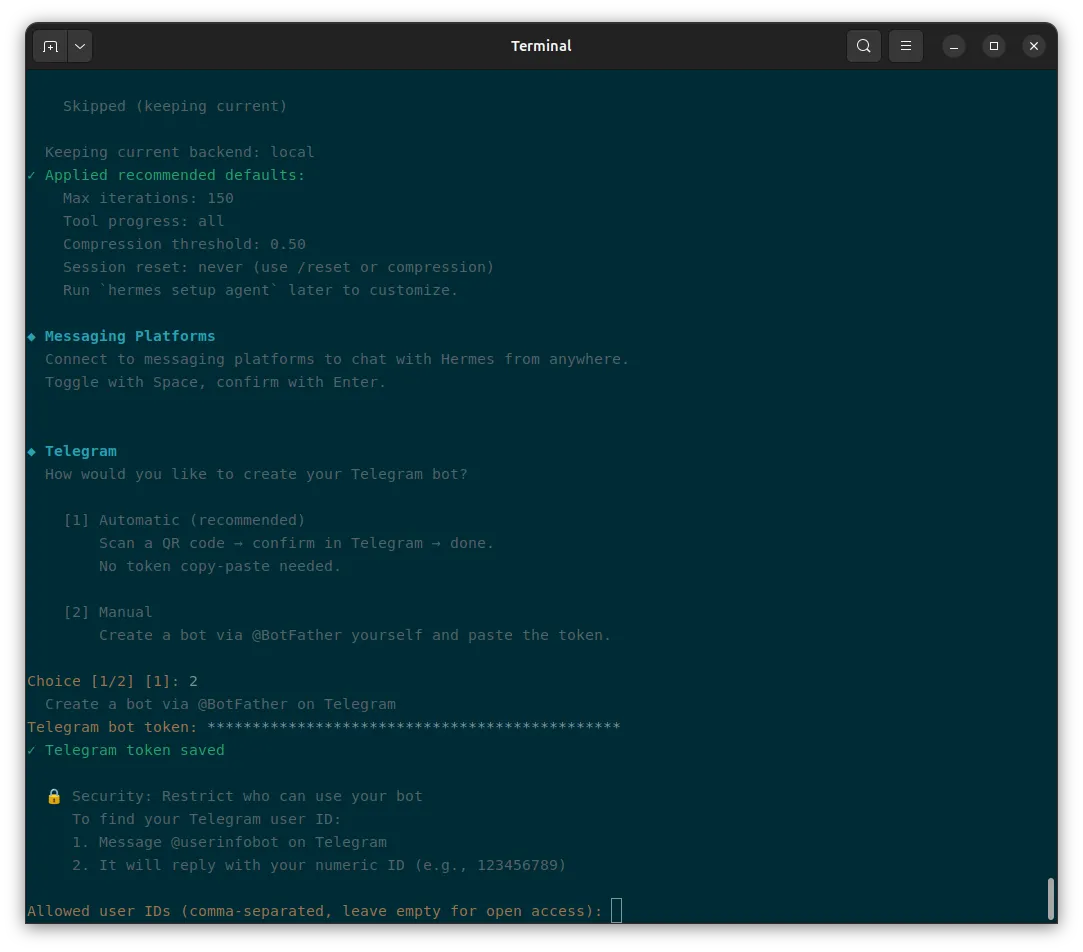
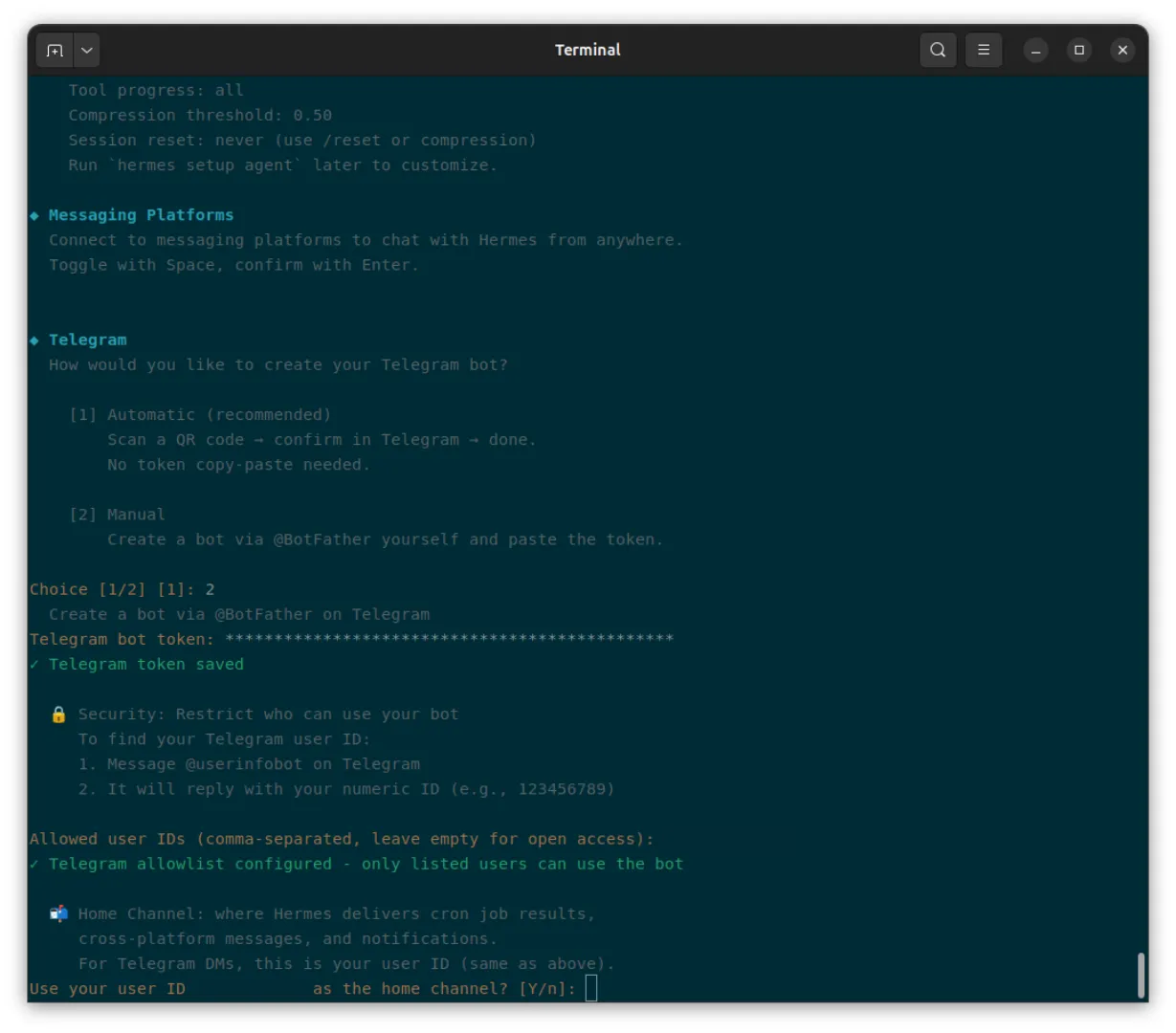
Any authorised user that messages Hermes will receive a response in the same conversation. The home channel determines where Hermes sends scheduled messages, or rather, activities that start without an incoming message eg. scheduled reminders, cron-job results, daily briefings, calendar or task summaries etc.
For my PA, the home channel is my user ID
10. Run Hermes in the background
Hermes uses a gateway to receive messages from Telegram and deliver them to the agent.
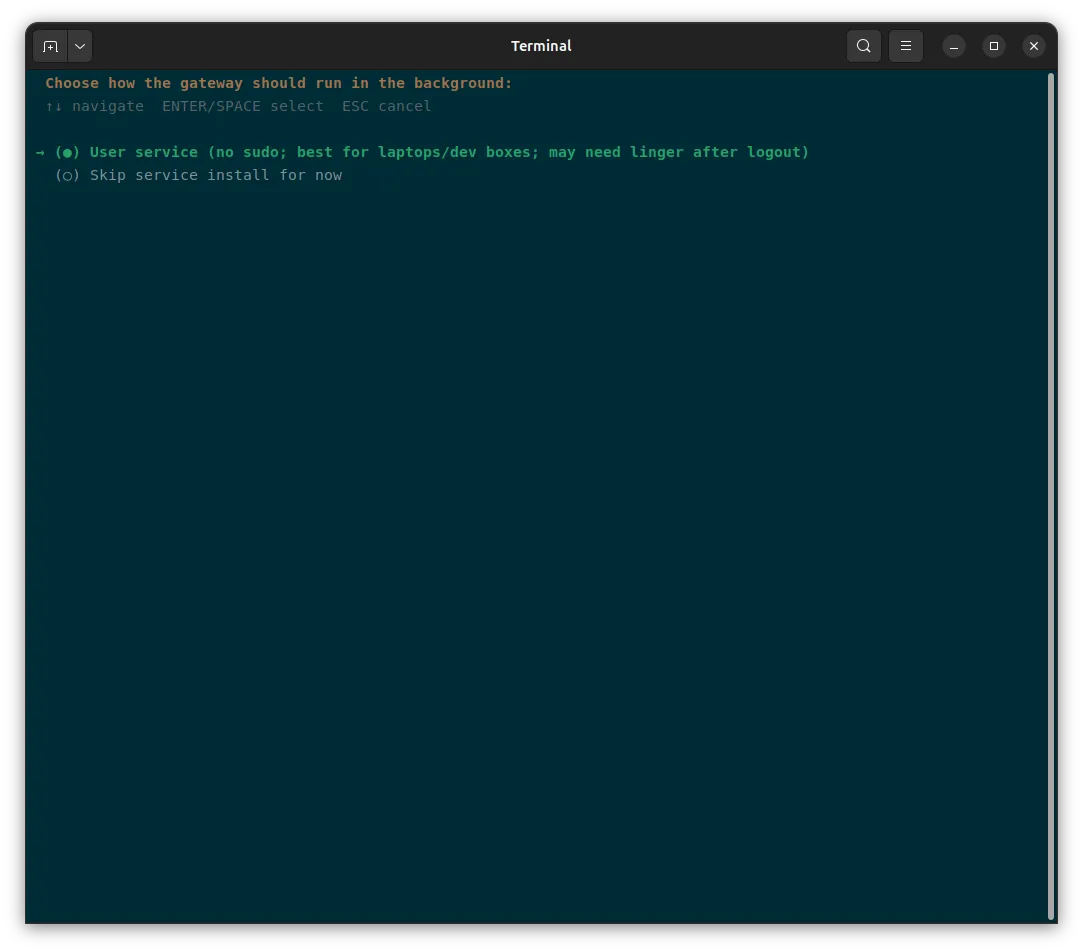
Installing it as a systemd user service allows the gateway to run in the background under my account without root privileges. Systemd can start and monitor the service without requiring me to leave a terminal window open. (If I run the gateway only inside my terminal, it will stop when I close the terminal)
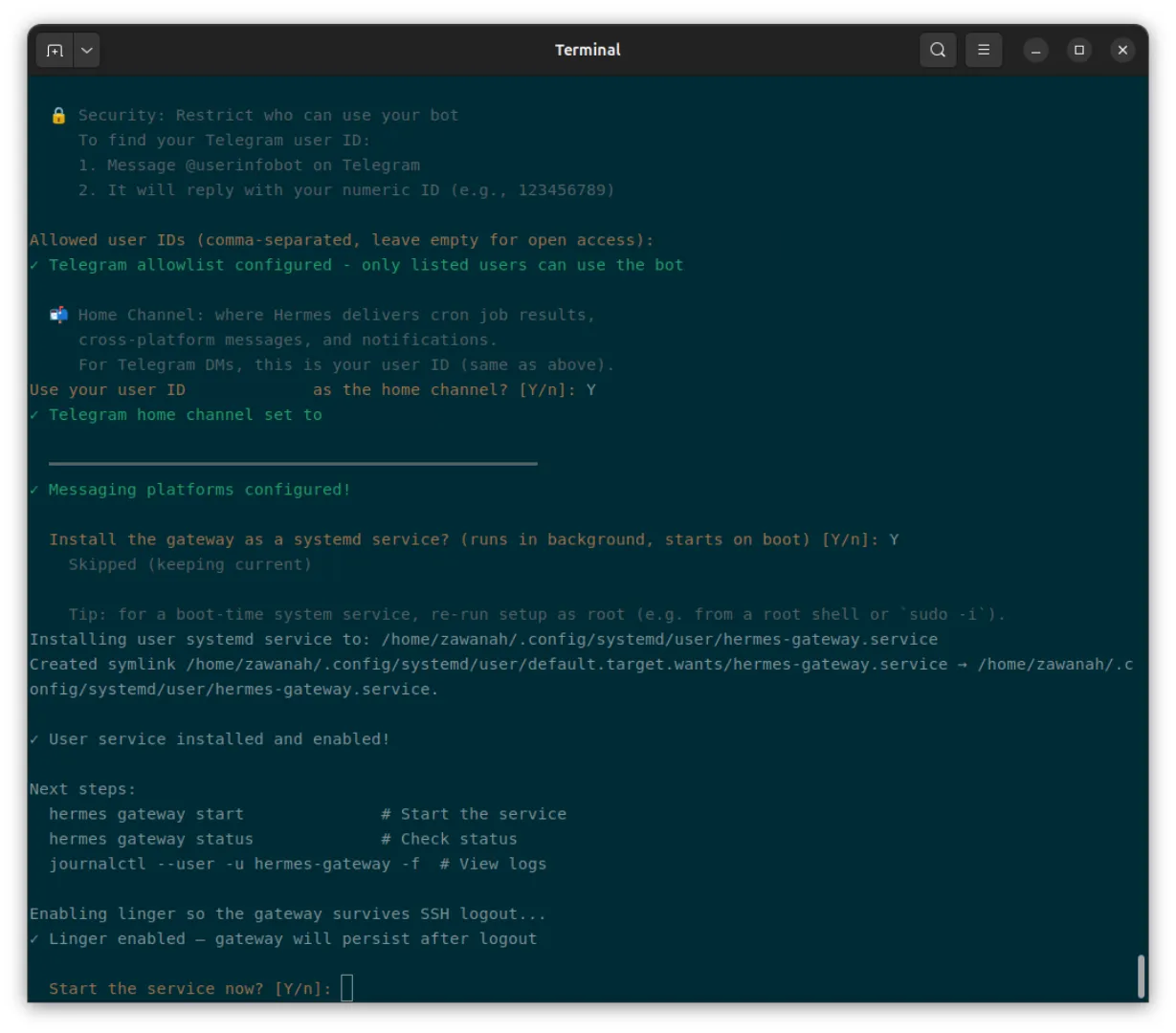
The installer enabled linger, allowing user service to start during boot and conitnue running after I log out. For an always-on personal assistant, this is important, so that as long as the NUC remains powered on, awake and connected to the internet, Hermes can remain available through Telegram.
11. Review tools available to Hermes
The default selection includes web search, browser automation, terminal and file operations, code execution, image and video analysis, skills, task planning, persistent memory, conversation search, task delegation, scheduled jobs and computer control.
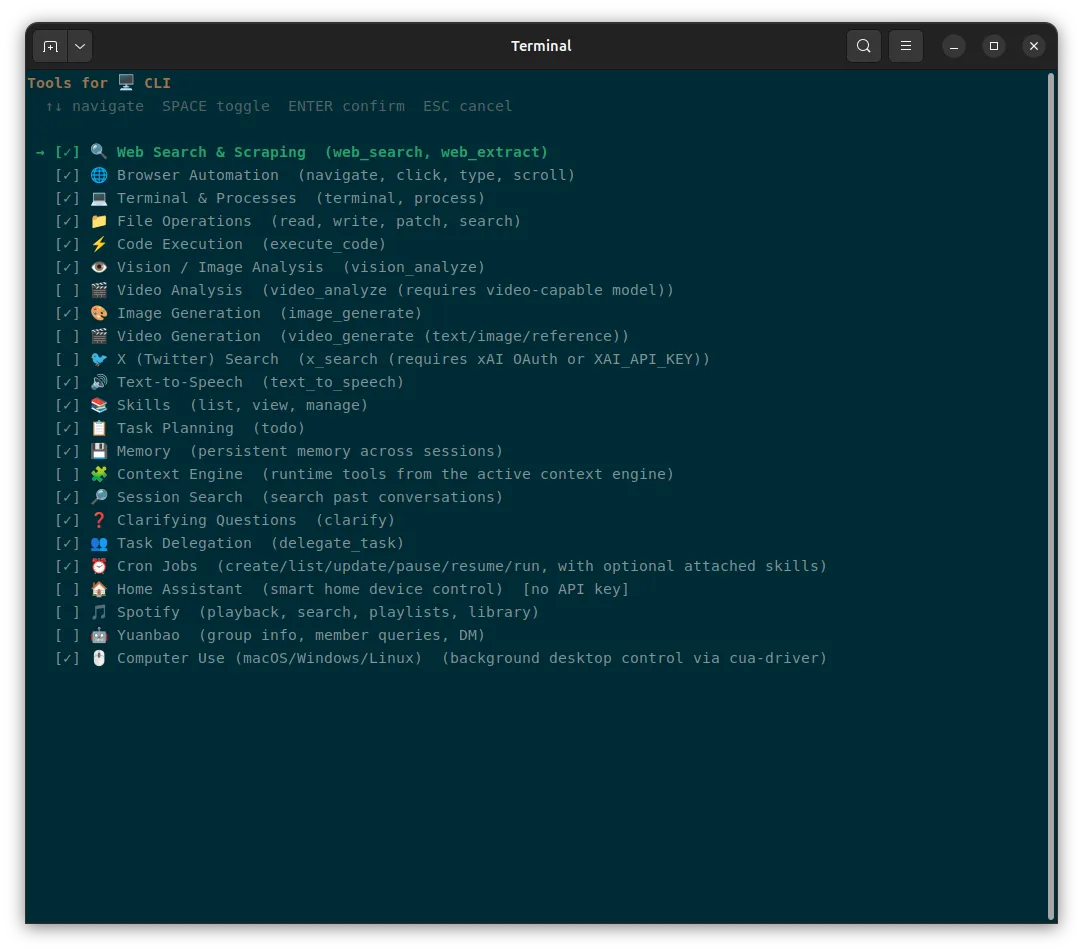
I kept the default selection as I want to start with a general-purpose personal assistant.
I did not need Spotify or X or Home Assistant etc. at this point so I left them unchecked. Anyway, these can be enabled later if the need arises.
Now we configure the access to the various tools.
12. Configure browser access
Browser automation is different from web search. Web search can search and find the relevant pages while browser automation allows the agent to interact with them eg. click elements, enter information and extract content from pages.
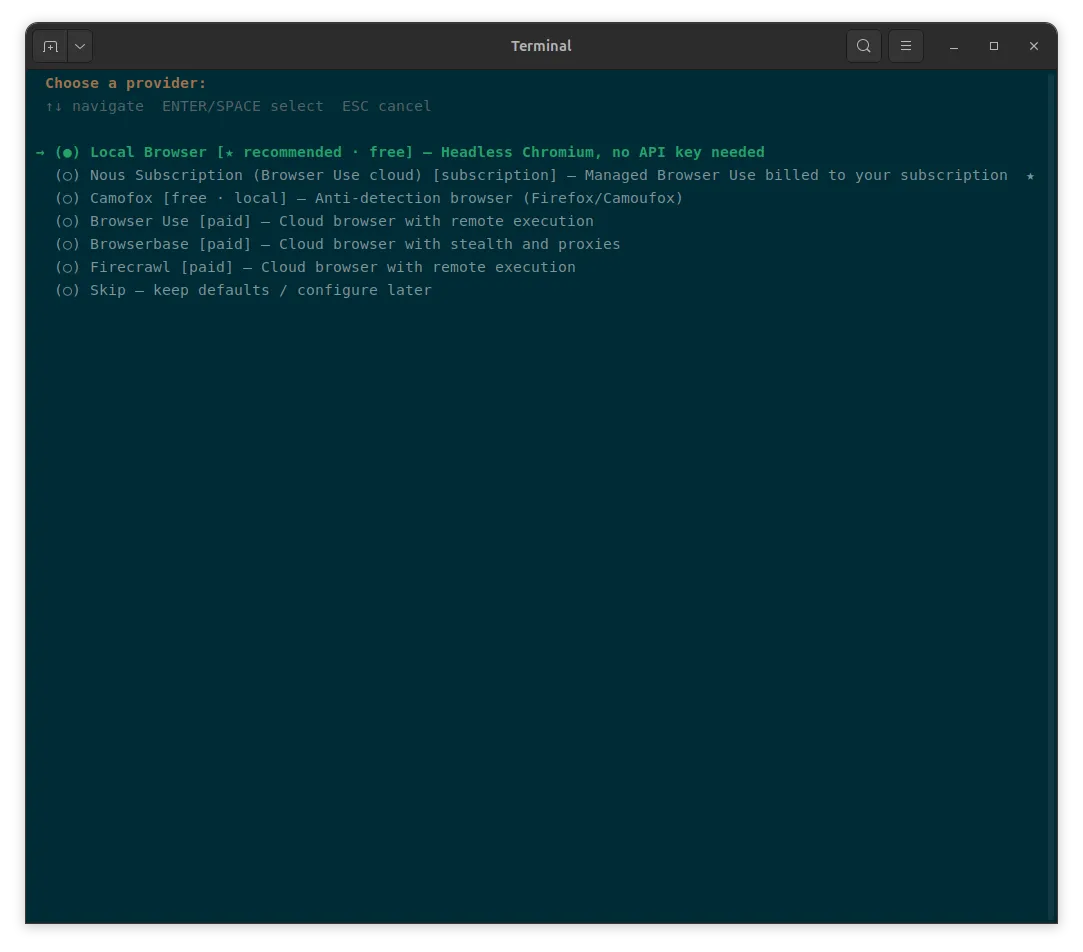
I selected the recommended Local Browser. It is sufficient for my personal assistant (I don’t see myself asking it to perform advanced browser workflows), it is free and doesn’t require an API key.
13. Configure image generation
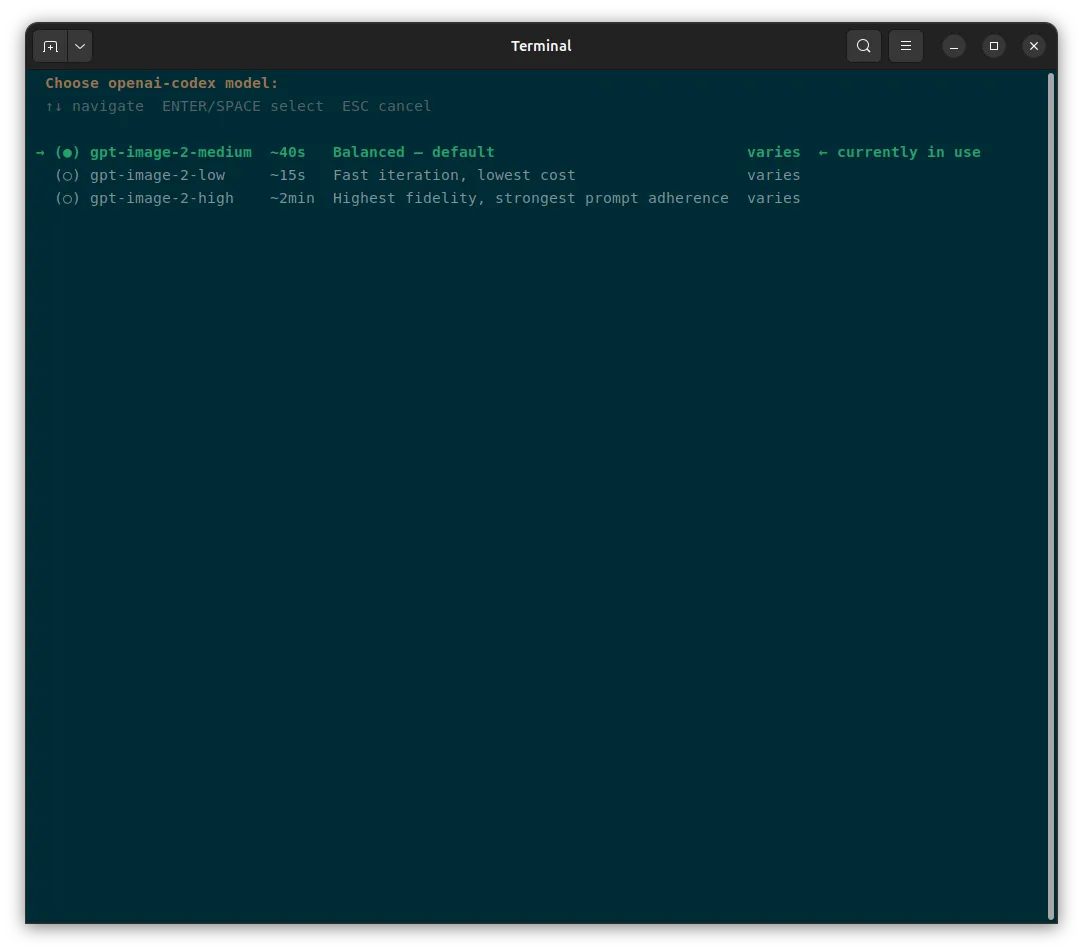
Hermes supports several providers for image generations. I seelcted OpenAI using Codex authentication, since I have already connected it earlier.
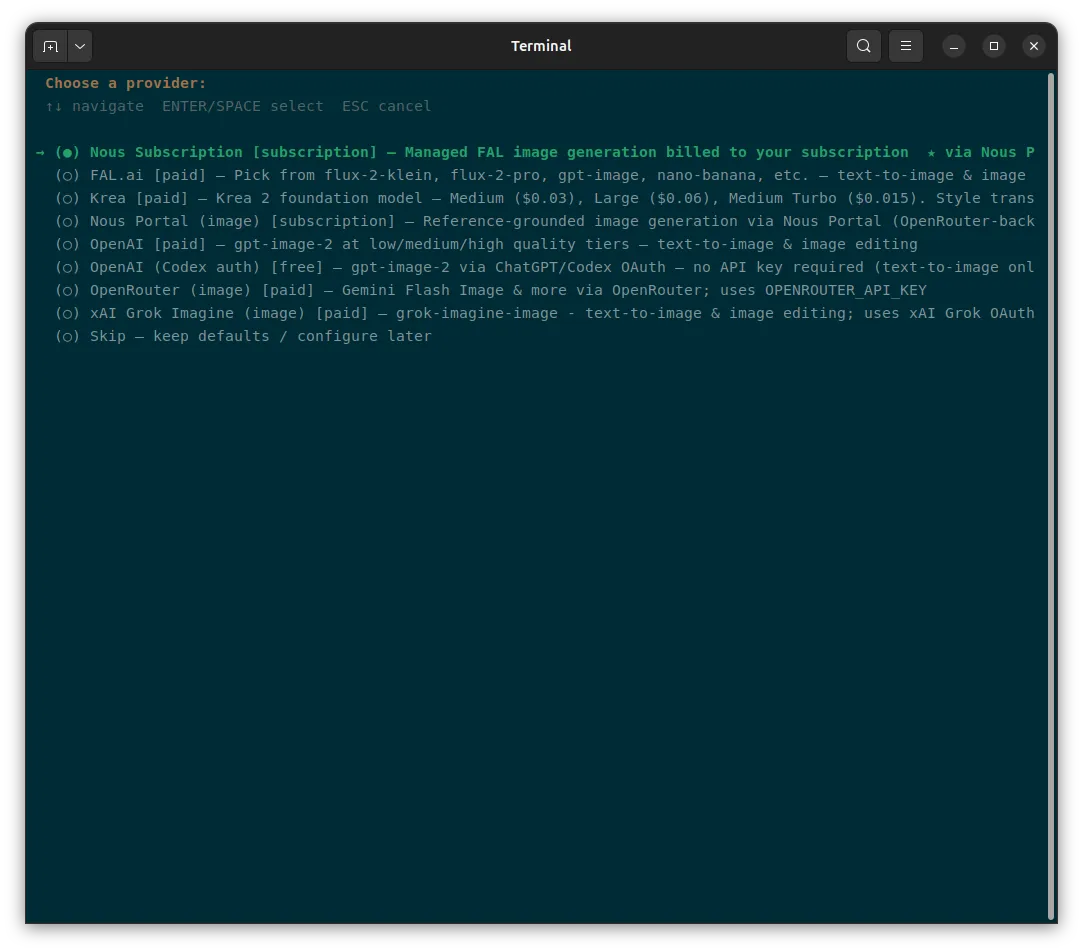
I kept the default gpt-image-2-medium option. Medium seemed like a reasonable default for a personal assistant.
14. Configure text-to-speech
Text-to-speech allows Hermes to turn a written response into audio.
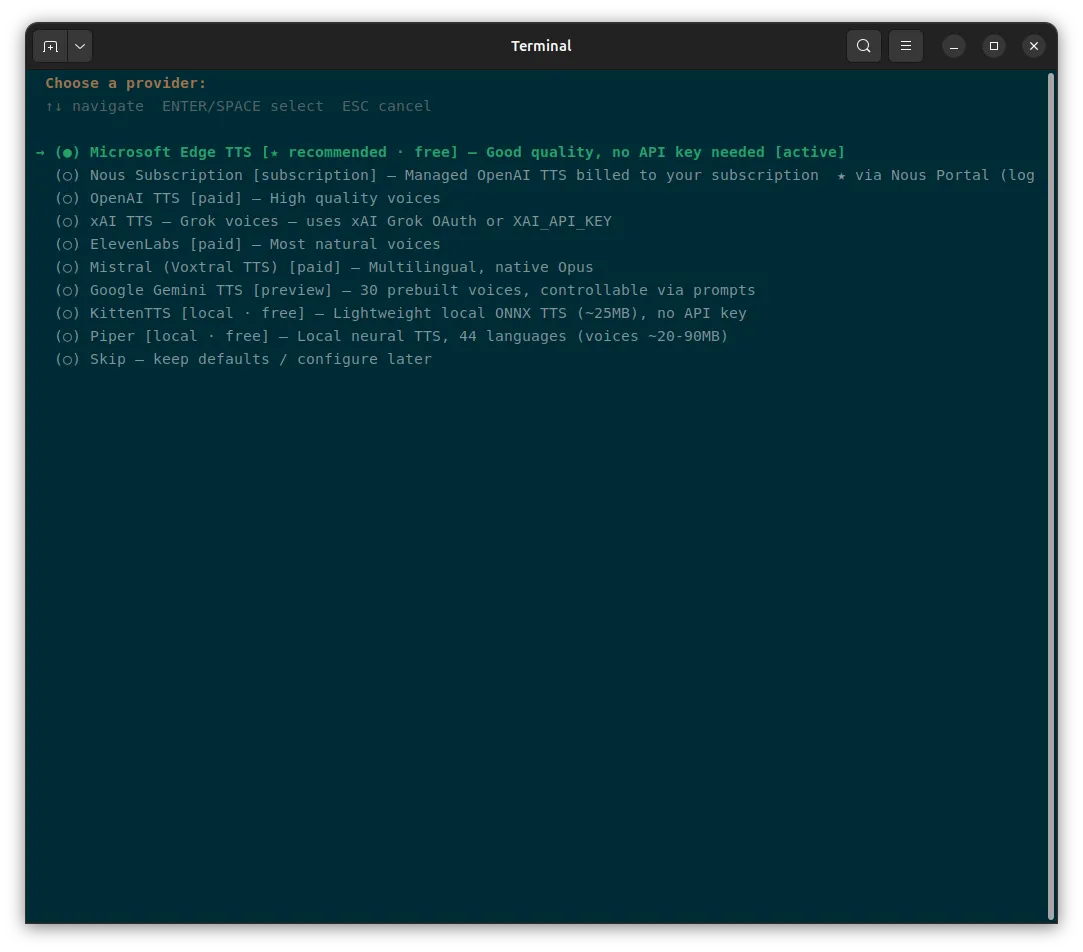
I kept the recommended Microsoft Edge TTS provider. It is free, and produces good-quality speech while not requiring an API key. TTS is not a hard need for me for now at least.
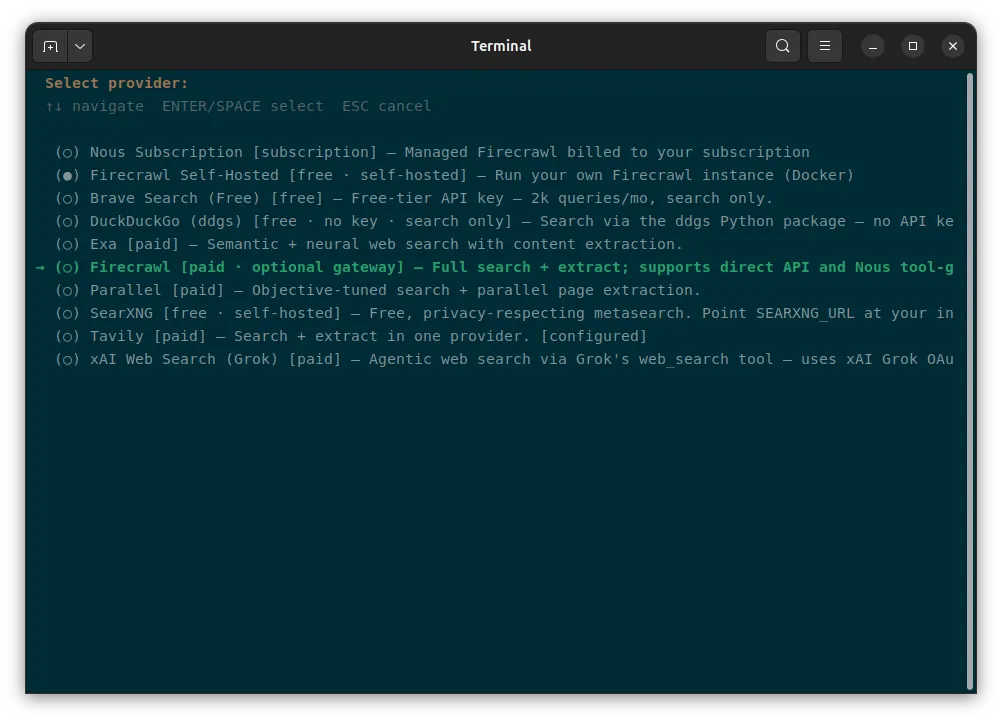
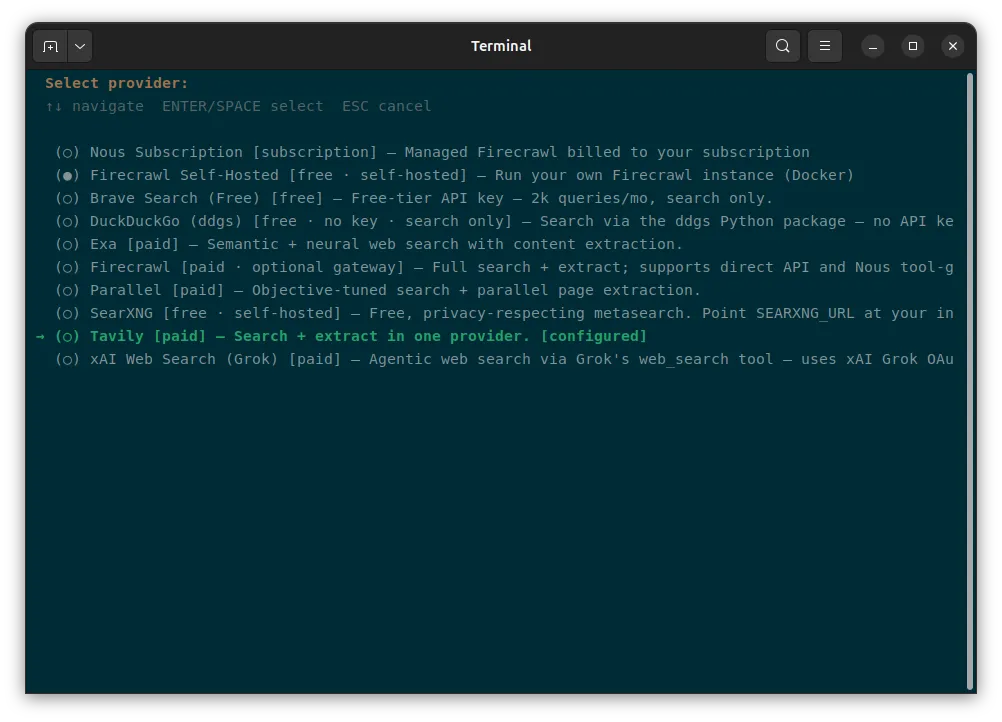
15. Configure web search and extraction
Search helps Hermes discover relevant pages, while extraction retrieves and structures the content from those pages so the agent can analyse it.
Hermes includes a free DuckDuckGo search skill that does not require an API key. It is suitable for ordinary searches, but search-only providers may be less capable when Hermes needs to retrieve the full contents of a page.
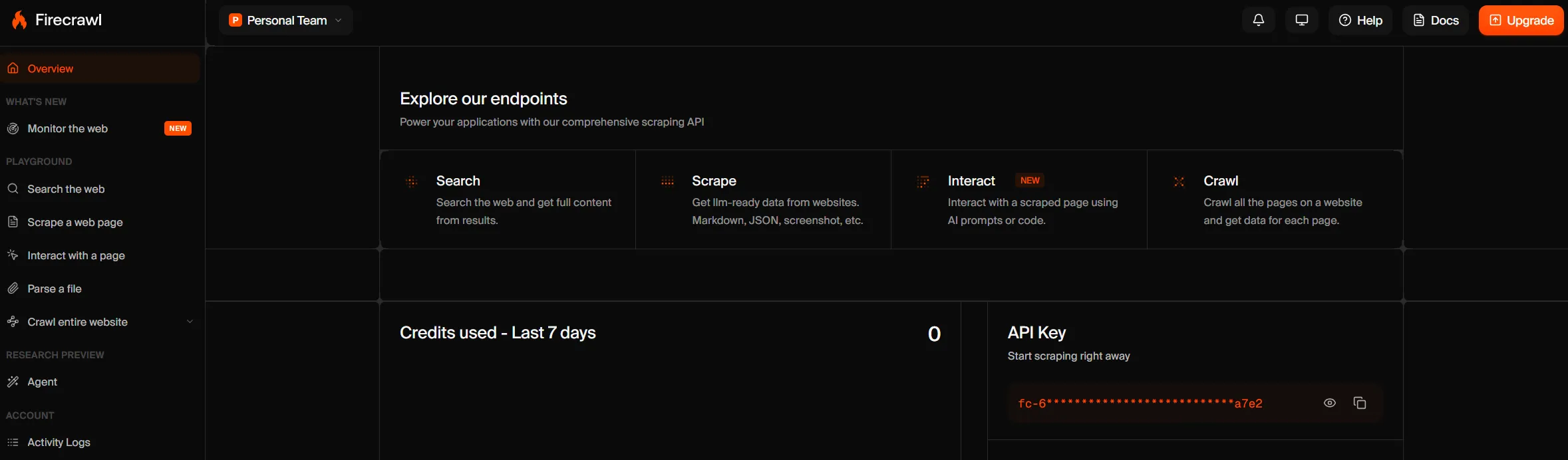
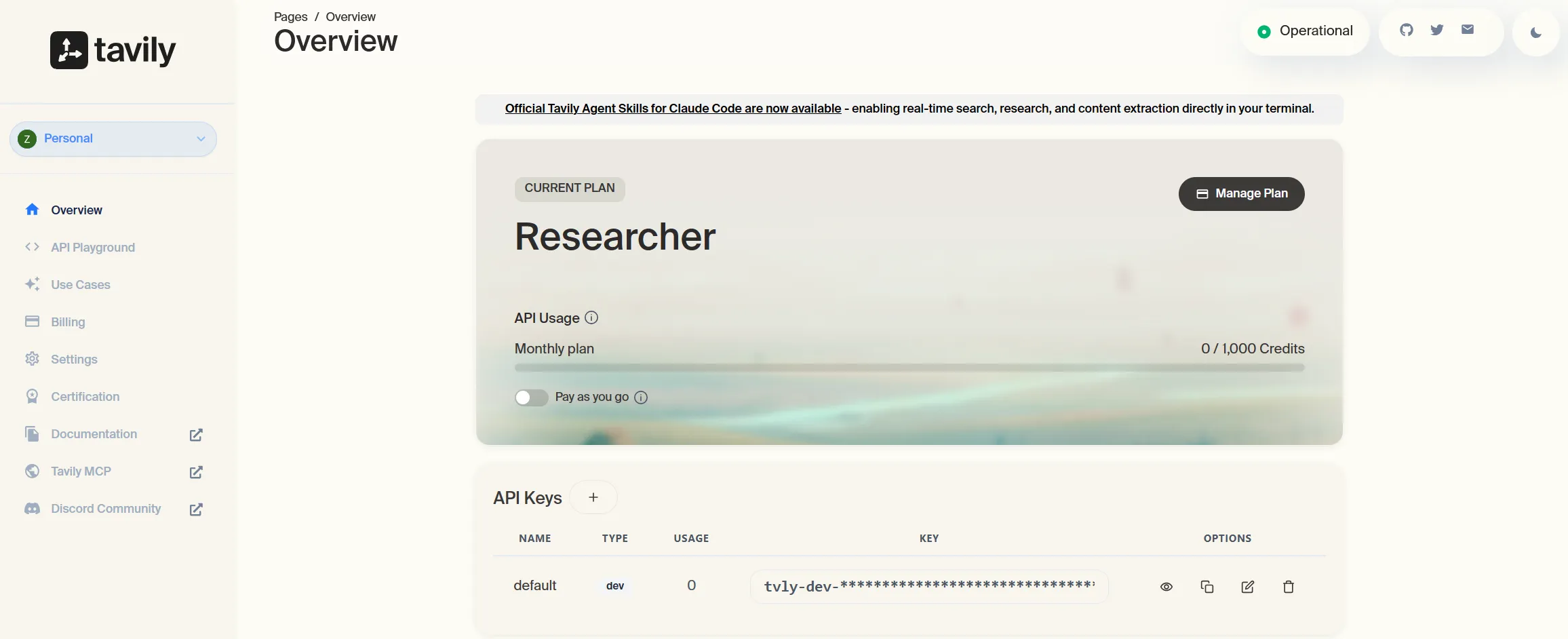
Based on the Web Search documentation, Firecrawl has 500 free credits per month and Tavily with 1,000 free searches per month. So I signed up for both.
Never add your API_KEY through anything other than directly in the
.envfile or cli.
16. Completed configurations
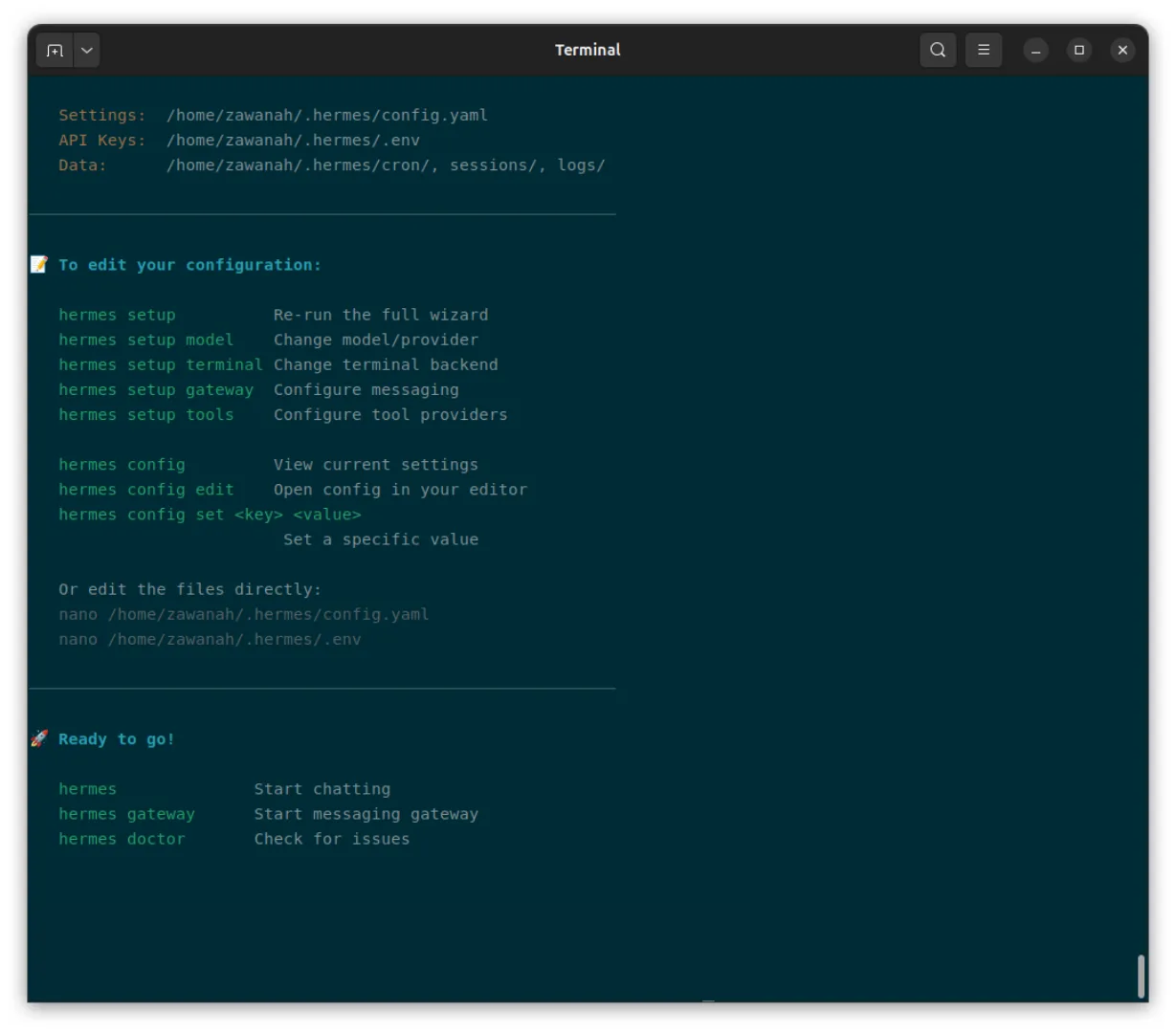
There will be a summary of how to edit the configurations and we’re ready to go!
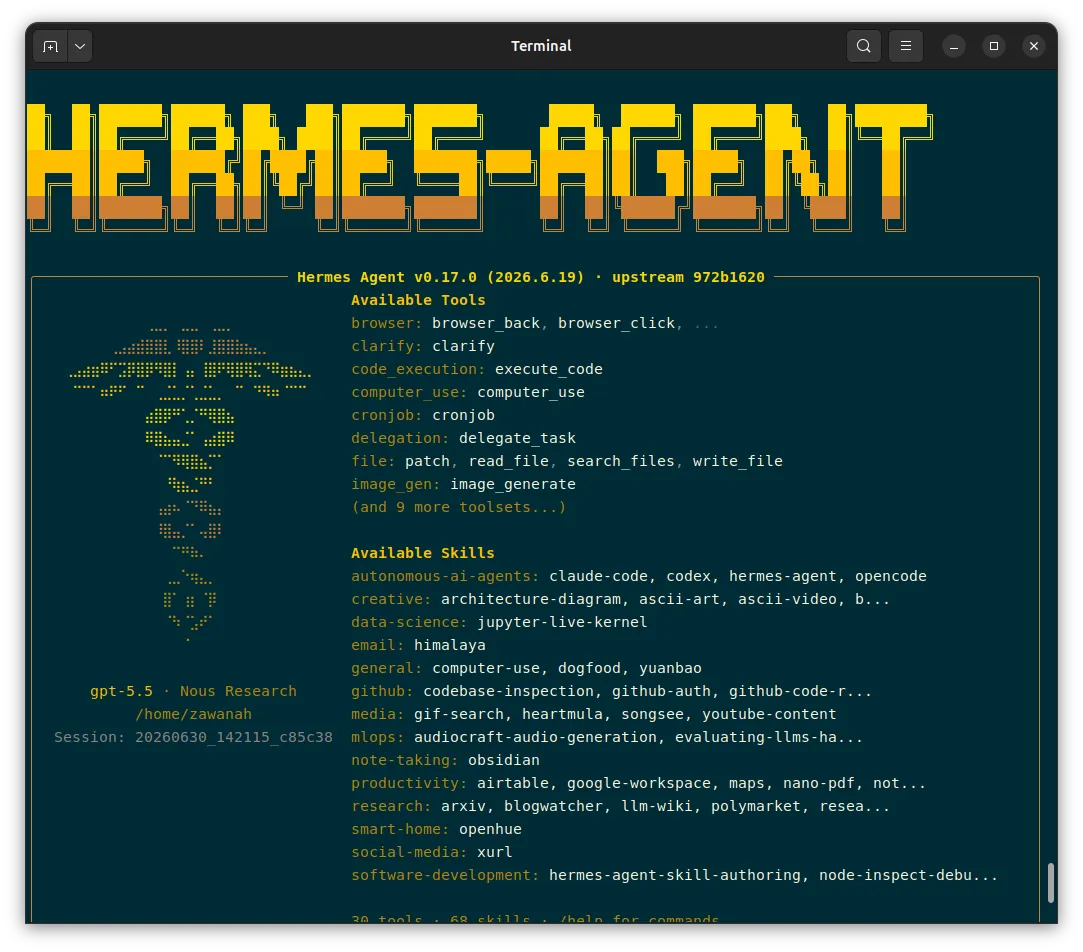
17. Start chatting with Hermes by typing hermes
In telegram, click on /start
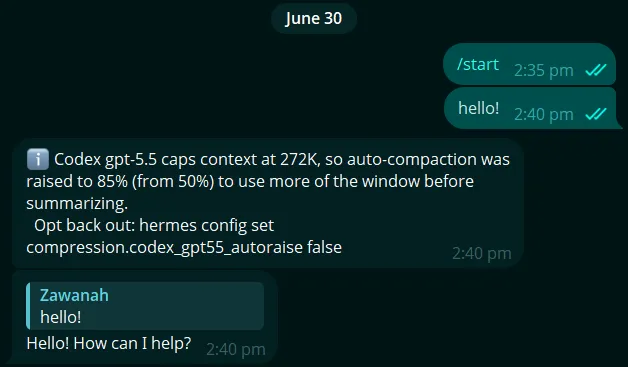
And voilà! I now have a hermes agent. This is just the starting point. Through persistent memory, it will gradually understand my preferences, routines and ways of working. The more I interact and chat with it, the more personal it will become.